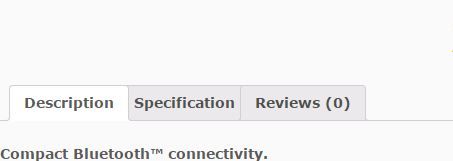
Previously, I had a site selling computer parts through WooCommerce and had specification data needing to be uploaded with product details without overwriting the manufacturers own product description. The answer was Custom Fields and calling that data into its own tab.
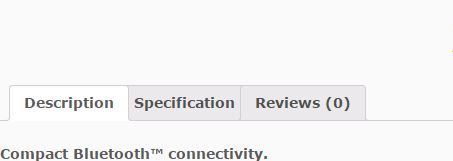
Allow custom fields to be viewed in a custom product tab in WooCommerce
Woocommerce as standard doesn’t come with a naming tab system. You get a choice of Product Description, Additional Information, and Reviews. While the options in Additional Information could work, it looks ugly and unmanageable with data imports.
Luckily, there is a way around it all. Make our own custom product tabs.
We import our product data into a Custom Field called ‘Specification’ and set about creating a tab called ‘Specification’. This is done via child theme’s function.php.
This code will Add a tab called Specifications, and display data from a custom field called ‘Specification’ (yes I know, never updated it). Remember to change name and custom field to what you want to use.
Functions.php:
// woocommerce tabs
add_filter( 'woocommerce_product_tabs', 'woo_new_product_tab' );
function woo_new_product_tab( $tabs ) {
global $post, $product;
$specification= get_post_meta($post->ID, 'specification', TRUE);
// Adds the new tab
if (!empty($specification)) {
$tabs['test_tab'] = array(
'title' => __( 'specification', 'woocommerce' ),
'priority' => 50,
'callback' => 'woo_new_product_tab_content'
);
}return $tabs;
}
function woo_new_product_tab_content() {
global $post, $product;
$specification = get_post_meta($post->ID, 'specification', TRUE);
echo($specification);
}
get_post_meta is what calls the custom field data, via ‘ID>field name, True’. This code loads it into an array for formatting and placing in the tab. There is possibly an easier way to do all of this, but it works. Priority defines where the tab will show, 30 is where ‘additional information’ tab is so our code overrides it. The first tab has a default of 10.
Next, we’ll need some Woocommerce templates in our child theme under Theme-Name/woocommerce, make sure ‘Single-product/tabs’ directory is there and create a new file called ‘Specification.php’ and ‘tab-specification.php’, These will tell WooCommerce what to display from where.
I’ve named the custom product tab ‘Specifications’, remember to replace that with your intended name.
specifications.php:
<?php
/**
* Specifications Tab
*/
global $post;
$meta_content = apply_filters('the_content', get_post_meta($post->ID, 'Specification', true));
?>
<div class="panel" id="tab-specifications">
<?php $heading = apply_filters('product_specifications_heading', __('Product Specifications')); ?>
<h2><?php echo $heading; ?></h2>
<?php echo $meta_content; ?>
</div>
tab-specification.php:
<?php
// Get Custom Field "specifications" meta data
global $post;
$meta_content = apply_filters('the_content', get_post_meta($post->ID, 'Specification', true));
if (!empty($meta_content)) { ?>
<li><a href="#tab-specifications"><?php _e('Specifications'); ?></a></li>
<?php } ?>
Again, change the field names (in this example ‘Specifications’) to what you want to use.
Notes
This will also auto-hide the tab from users if there’s no data in the custom field to display.
This has been tested in WooCommerce (up to version 3, October 2017) and WordPress 4.3 with no issues. Should work fine unless something drastic changes in the way product templates work.
You can add information to this tab by adding data into the custom field on product edit pages. If you don’t see any section for custom fields, check under ‘Screen Options’ on the top right and check its enabled.
Custom fields should allow HTML code to be displayed in most content, check your theme’s sanitation methods if HTML tags appear randomly in custom fields.
Credits and sources
Thanks to Kieran Barnes and Sean Barton for their working examples and guides on how the tabs system works and its associated actions/filters.